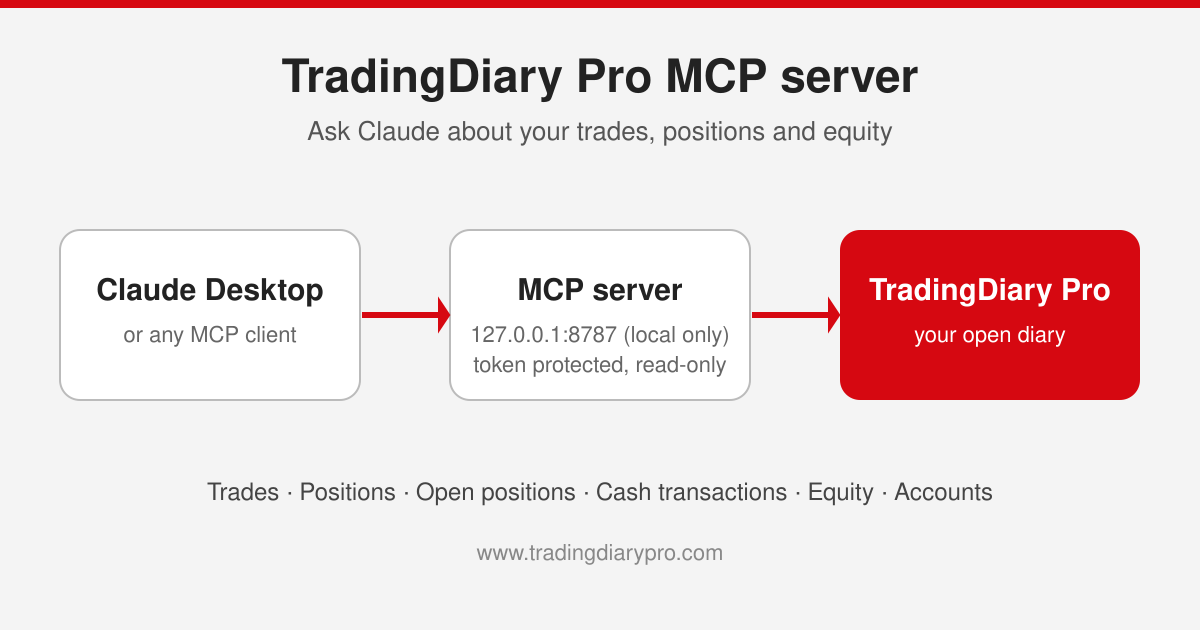
TradingDiary Pro MCP server: connect Claude to your trading journal
Starting with version 26.2, TradingDiary Pro has a built-in MCP server. It lets AI assistants such as Claude Desktop read the diary you have open in TradingDiary Pro, so you can ask questions about your trading in plain English and get answers calculated from your own data. There is no export, no CSV file and no copy of your database to upload.
This post explains what the MCP server does, why it is useful, how to turn it on in TradingDiary Pro and how to connect it to Claude Desktop step by step.
What is MCP?
The Model Context Protocol (MCP) is an open standard that lets AI applications connect to external tools and data sources. An application that speaks MCP (the client, for example Claude Desktop) can discover which tools a program (the server) offers and call them when it needs data to answer your question.
In practice this means Claude no longer has to guess about your trading. When you ask “What was my realized PnL on options this year?”, Claude calls the TradingDiary Pro MCP server, receives the matching positions from your diary and builds the answer from the real numbers.
What the TradingDiary Pro MCP server can do
The server runs inside the TradingDiary Pro desktop application and serves the diary that is currently open. It gives read access to:
- Accounts – every trading account in the diary.
- Trades – individual executions (fills) with instrument, account, price, quantity and commission.
- Positions – the round-trip positions TradingDiary Pro builds from your trades, with realized PnL, commission, risk, R multiple, MAE/MFE, tags and option strategy legs.
- Open positions – positions you still hold, valued at the last price stored in the diary.
- Cash transactions – dividends, interest, fees, withholding tax, deposits and withdrawals.
- Equity – the points of your equity (net asset value) curve.
Claude reaches this data through 11 tools:
| Tool | What it returns |
|---|---|
list_accounts | Your accounts and their ids – the starting point for account-specific questions |
query_trades / get_trade | Filtered list of executions / one execution |
query_positions / get_position | Filtered list of round-trip positions / one position with its trades, cash transactions, orders and legs |
query_open_positions / get_open_position | Positions still held, valued at the last stored price / one open position in full |
query_cash_transactions / get_cash_transaction | Filtered list of cash movements / one cash movement |
query_equity / get_equity | Filtered list of equity curve points / one point |
Every query tool accepts the same filters: accounts, a date range, sort order and paging. The server is read-only: none of the tools can add, change or delete anything in your diary.
Why use an MCP server with your trading journal?
Ask questions instead of building reports
TradingDiary Pro already has dozens of reports. The MCP server adds a way to ask the questions that no single report answers, and to combine data from different parts of the diary in one answer. For example:
- “Which five underlyings made me the most money this year, and which lost the most?”
- “Compare my win rate and average R multiple on long and short positions.”
- “How much did I receive in dividends in 2025, and how much withholding tax was deducted?”
- “Which open positions have the largest unrealized loss right now?”
- “Summarize my worst month: what did I trade, and what went wrong?”
- “What was my largest drawdown on the equity curve last year?”
Always up to date, no exports
The server reads the diary that is open in TradingDiary Pro. After you import your latest broker statement, the new trades are available to Claude immediately. There are no files to export and upload, and no second copy of your data that goes out of date.
The same numbers you see in TradingDiary Pro
Positions, PnL, risk and R multiples come from the same calculations TradingDiary Pro uses in its own views. Claude does not rebuild positions from raw fills, so its answers match what you see in the application. Every amount is returned together with its currency.
Private and secure by design
- Local only: the server listens only on
127.0.0.1(your own PC). It cannot be reached from your network or the internet, whatever your firewall settings are. - Token protected: every request must carry a secret access token. Requests from web pages in your browser are rejected.
- Read-only: no tool can change your data.
- No file paths: the server tells Claude the name of the open diary, but not where it is stored on your disk.
Keep in mind that the answers Claude gives are generated by Claude: the data returned for your question is sent to the AI provider as part of the conversation, just as if you had pasted it into the chat yourself. Only the records needed for the question are sent, not your database file.
Works with any MCP client
MCP is an open standard. This post uses Claude Desktop, but the same server also works with Claude Code and other MCP-compatible AI tools and agents.
Step 1: Enable the MCP server in TradingDiary Pro
The MCP server is enabled by default and starts automatically when TradingDiary Pro opens your diary. To check it and get your access token:
- Start TradingDiary Pro (version 26.2 or later) and open your diary.
- Open Tools > Options… and go to General settings > MCP server.
- Make sure Enable the MCP server is checked.
- Check the Status line. It should read Running on http://127.0.0.1:8787/mcp. Note the port number, you will need it in step 3.
- Click Copy next to the Token field to copy your access token to the clipboard.
A few things worth knowing about these settings:
- Port: the default port is 8787. With Choose the port automatically checked, TradingDiary Pro uses the next free port if 8787 is taken, and remembers it. Uncheck it to use a fixed port of your choice.
- Stored per diary: the port and the token are saved in the diary itself. If you run two instances of TradingDiary Pro with two different diaries, each serves its own data on its own port with its own token.
- No restart needed: changes to these settings take effect as soon as you close the Options window.
- TradingDiary Pro must be running: the server lives inside the application, so Claude can only reach your diary while TradingDiary Pro is open.
Step 2: Install Node.js
Claude Desktop starts local MCP servers from its configuration file as small command-line programs. To connect it to the TradingDiary Pro server, which runs inside a desktop application, a free bridge called mcp-remote is used. It runs on Node.js.
- Download the LTS version of Node.js from nodejs.org and install it with the default options.
- To check the installation, open a Command Prompt and type
node --version. It should print a version number.
You do not need to install mcp-remote separately: Claude Desktop downloads it automatically the first time it starts the connection.
Step 3: Connect Claude Desktop to TradingDiary Pro
- Install Claude Desktop and sign in.
- In Claude Desktop, open Settings > Developer and click Edit Config. This opens the folder of the
claude_desktop_config.jsonfile (normally%APPDATA%\Claude\claude_desktop_config.json). Open the file in Notepad. - Paste the following configuration. If the file already contains other servers, add the
"tradingdiary-pro"block to the existing"mcpServers"section instead.
{
  "mcpServers": {
    "tradingdiary-pro": {
      "command": "npx",
      "args": [
        "-y",
        "mcp-remote",
        "http://127.0.0.1:8787/mcp",
        "--header",
        "Authorization:${AUTH_HEADER}"
      ],
      "env": {
        "AUTH_HEADER": "Bearer PASTE-YOUR-TOKEN-HERE"
      }
    }
  }
}- Replace
PASTE-YOUR-TOKEN-HEREwith the token you copied in step 1. Keep the wordBearerand the space after it. - If the Status line in TradingDiary Pro shows a port other than 8787, change
8787in the URL to match. - Save the file, then quit Claude Desktop completely (right-click its icon in the system tray and choose Quit) and start it again. Claude Desktop reads the configuration only at startup.
The token is stored as plain text in the configuration file, so treat that file like a password.
Step 4: Ask Claude about your trading
- Make sure TradingDiary Pro is running with your diary open.
- Start a new chat in Claude Desktop. Click the + button (Add files, connectors, and more) in the bottom-left corner of the message box, move the mouse over Connectors and click Manage connectors. tradingdiary-pro should be listed; select it to see its tools.
- Start with a simple question such as “List my trading accounts in TradingDiary Pro.”
- Claude asks for permission the first time it uses a tool. Allow it, and Claude reads your accounts and answers.
From here you can ask anything about your trades, positions, cash transactions and equity. For questions that cover many records, Claude reads the data page by page; the server tells Claude how many records match in total, so a summary covers the whole period rather than only the first page.
Using Claude Code instead
Claude Code connects to HTTP MCP servers directly, so no bridge or Node.js setup is needed. Run this command once, with your token and port:
claude mcp add --transport http tradingdiary-pro http://127.0.0.1:8787/mcp --header "Authorization: Bearer PASTE-YOUR-TOKEN-HERE"Troubleshooting
- Status shows “Not running”: the configured port is probably used by another program. Check Choose the port automatically, or pick a different port, then update the URL in the Claude configuration.
- tradingdiary-pro does not appear in Claude Desktop: check that the configuration file is valid JSON (every bracket and comma in place), that Node.js is installed, and that you fully quit and restarted Claude Desktop. Under Settings > Developer Claude Desktop shows the state of each server; the connection log is written to
%APPDATA%\Claude\logs\mcp-server-tradingdiary-pro.log. - Authorization errors: the token in the configuration does not match the open diary. Copy it again from Tools > Options… > General settings > MCP server. Remember that each diary has its own token.
- Claude says no diary is open: open your diary in TradingDiary Pro and ask again. The server keeps running when you close a diary, but it has no data to serve until you open one.
- Nothing works after a restart of TradingDiary Pro: make sure the application is running before you ask Claude – the server is available only while TradingDiary Pro is open.
Advanced users can also find the running server’s address and token in %APPDATA%\TradingDiary Pro\mcp\endpoint-<port>.json. The file is created when the server starts and removed when TradingDiary Pro closes.
Frequently asked questions
Can Claude change or delete my trades through the MCP server?
No. The TradingDiary Pro MCP server is read-only. None of its tools can add, modify or delete data in your diary.
Is my trading data accessible from the internet?
No. The server listens only on 127.0.0.1, your own computer, and every request needs your access token. However, the records Claude reads to answer a question are sent to the AI provider as part of the conversation.
Which AI tools can I use?
Any application that supports the Model Context Protocol over HTTP, including Claude Desktop (through the mcp-remote bridge) and Claude Code.
Does TradingDiary Pro have to be running?
Yes. The MCP server runs inside the TradingDiary Pro desktop application and serves the diary that is currently open.
Which version do I need?
The MCP server is available in the Windows desktop version of TradingDiary Pro from version 26.2. You can download the latest version from the Downloads page.